
This guide will show you how to easily add users to your Google Business Profile (previously known as Google My Business). Scroll down for step-by-step screenshot instructions.
Table of Contents
Step by Step Screenshot Instructions
Step 1: Sign in to the Google Account You Use for Google Business Profile
Go to business.google.com and sign in.
Step 2: View your Business Profile
Click “See your profile” and you will be redirected to the public profile view.

Step 3: Open the Menu
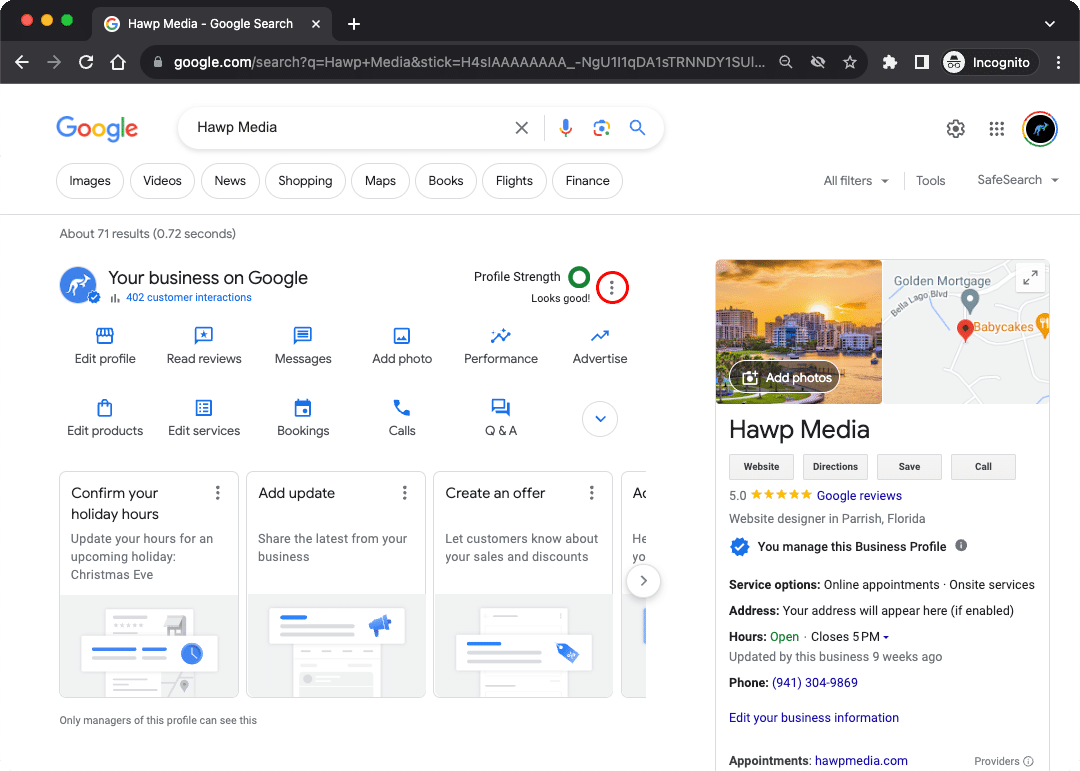
Click the 3 vertical dots next to “Your business on Google” as shown here:
Step 4: Business Profile Settings
When the dropdown menu opens, click “Business Profile Settings” as shown here:

Step 5: View Managers
Once you see the popup, select “People and Access”

Step 6: Add Manager
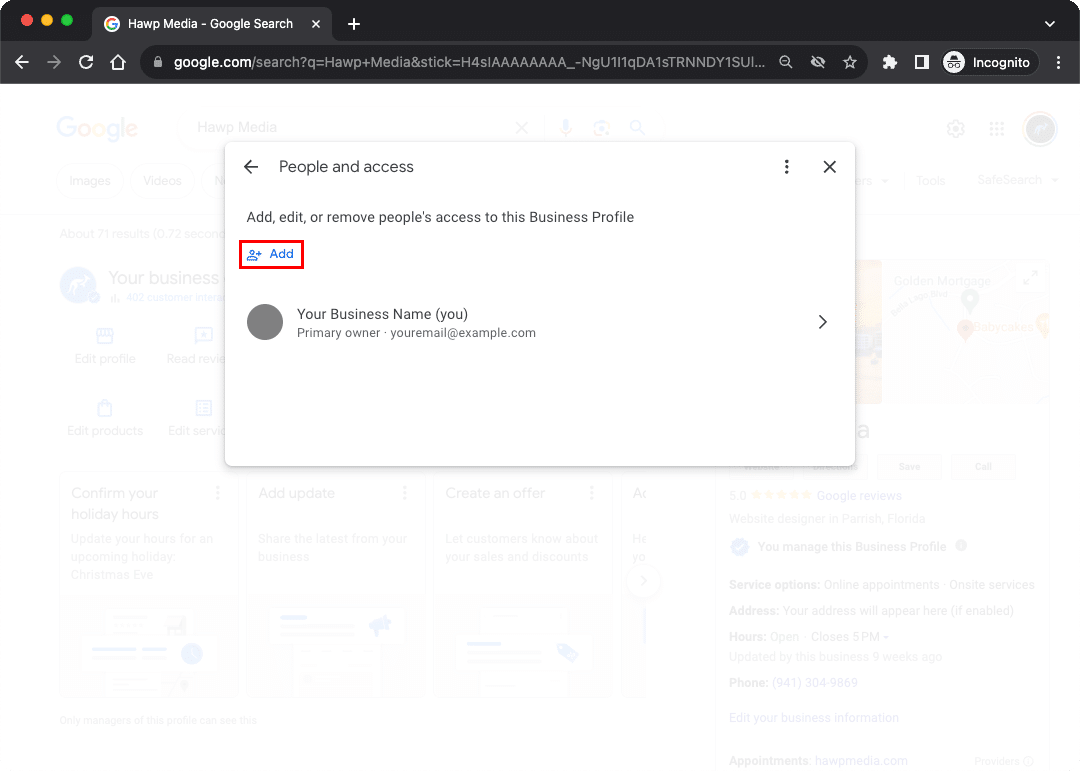
Click the “Add” button:
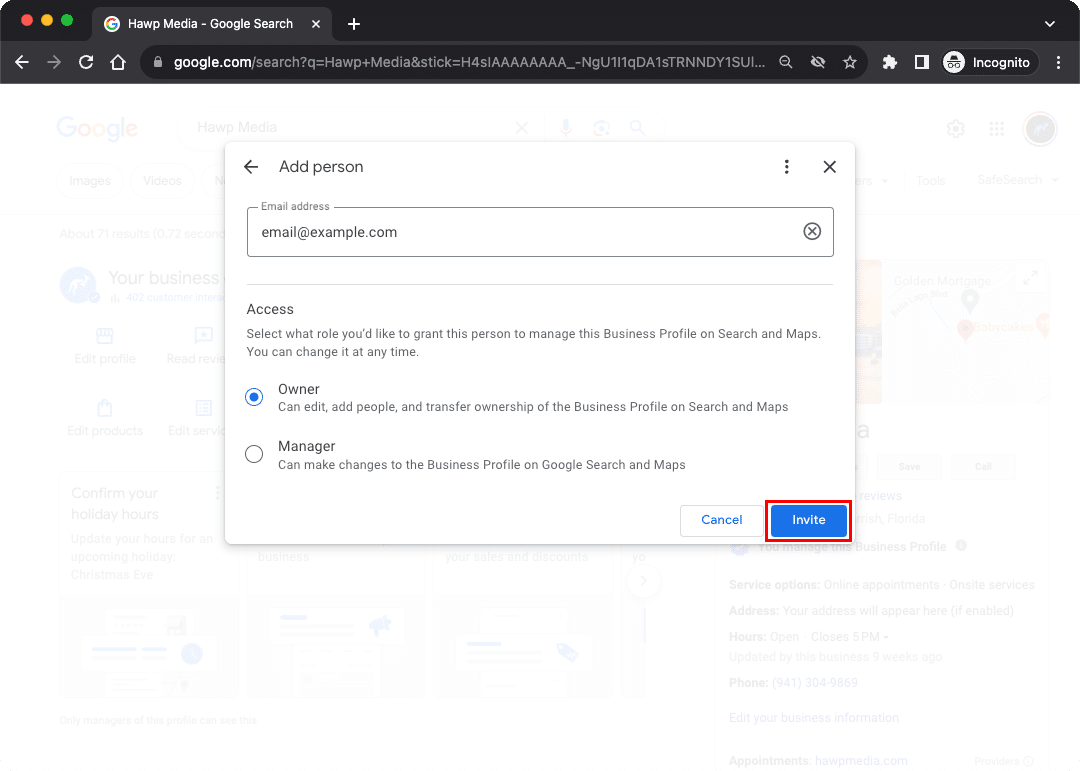
Step 7: Add New User Email
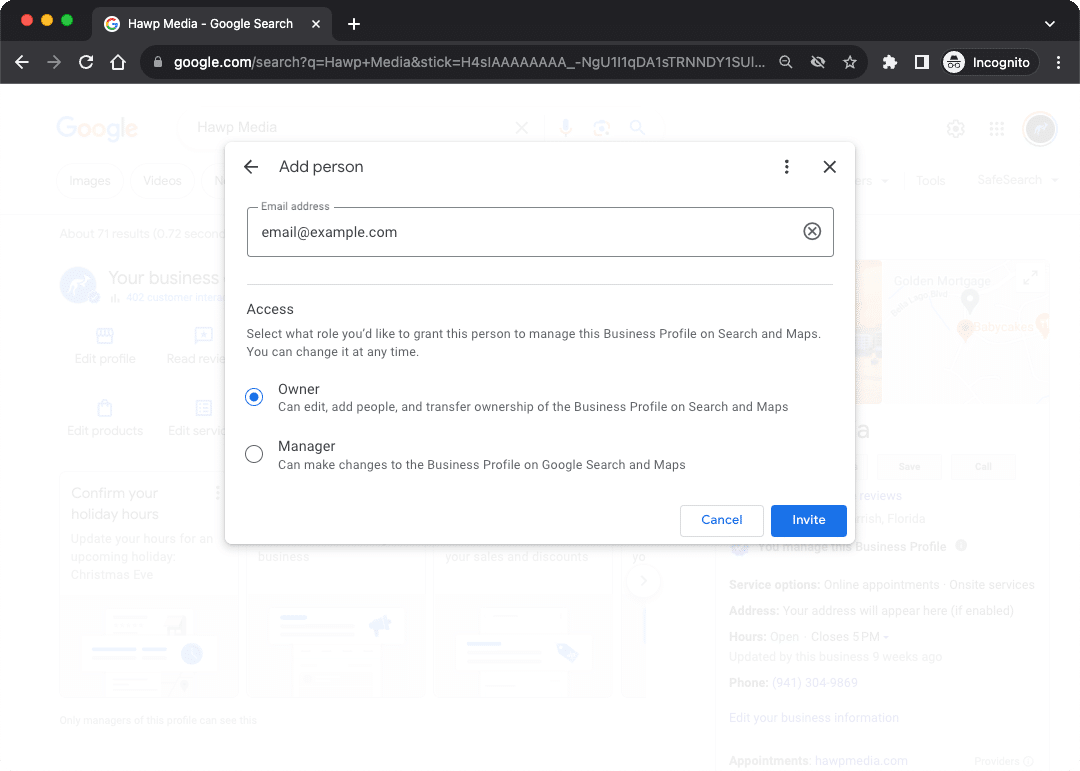
Enter the email address of the new user:
Step 8: User Access
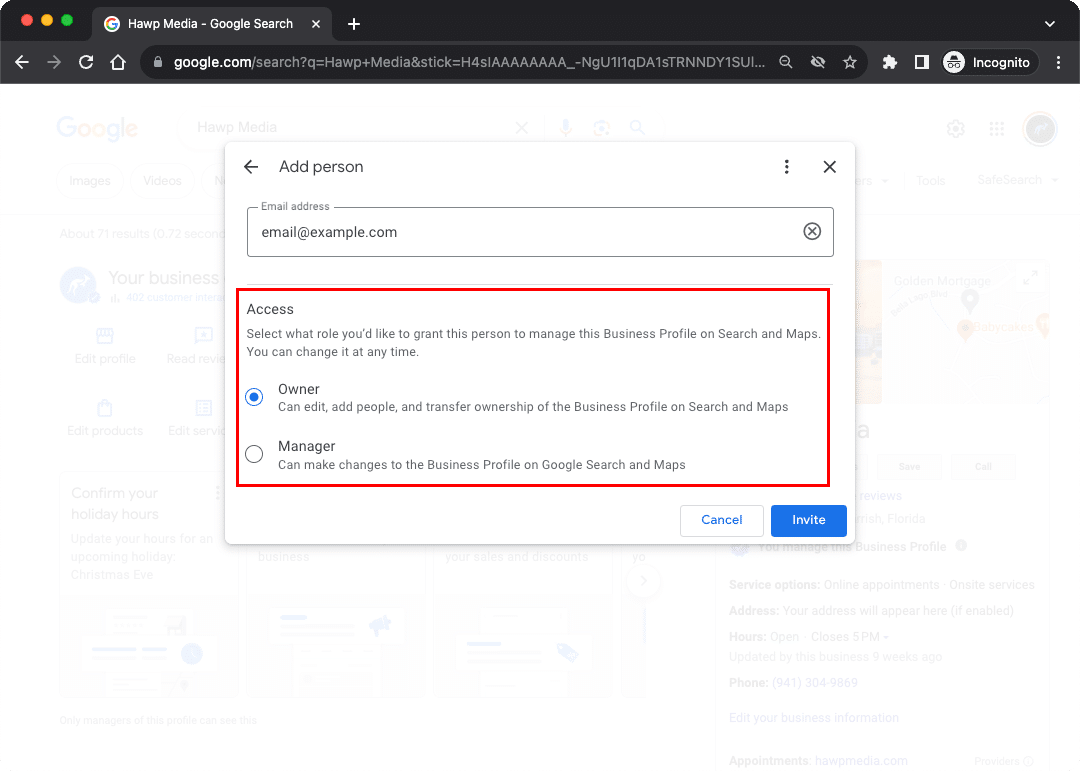
Set the permission level of the new user. You will notice in this example we have it set to Owner, at our agency it’s easier to manage profiles this way. We recommend you only give Owner access to the Digital Marketing agency you work with, or owners of your company. (Owners are able to delete each other so be careful)
Step 9: Invite!
Click the invite button and you’re done!
FAQ for How To Add Users To Google Business Profile
Why can’t I see an option to Add a user?
If you don’t see an “Add” button like our screenshot shows, then you are not logged into an Owner account for the listing. You need to do one of two things: either log into the account that owns the listing or request owner access from the profile owner.
Why can’t I see the 3 dots to open the business settings?
You aren’t logged in, ensure you are logged in to an Owner account to add users to your listing.
We’re Here to Help!
If you have any issues or need help with your Google Business Profile listing, drop us a line or give us a call!